How to Upload Videos on Bilibili from Android, iPhone & PC
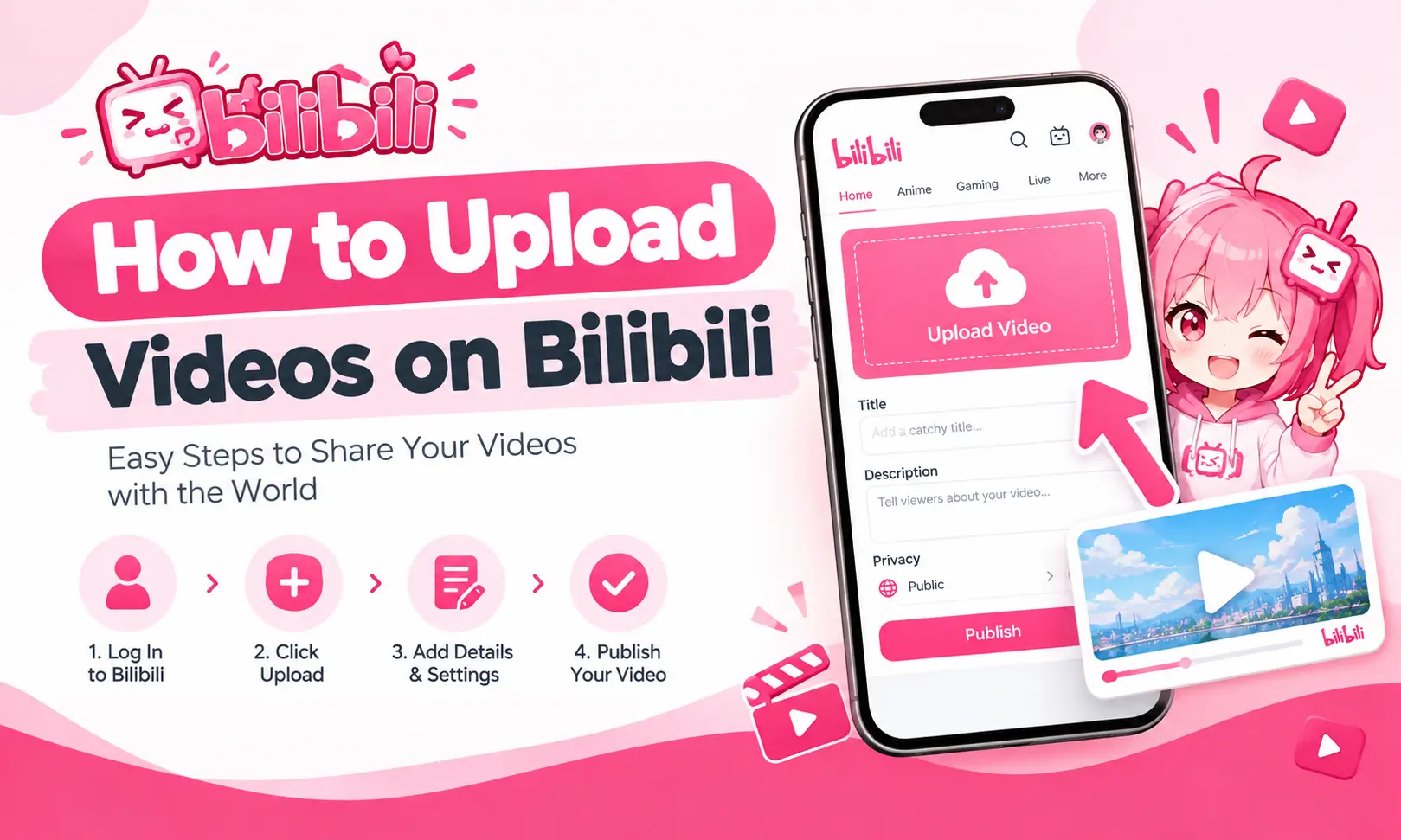
Learning how to upload videos on Bilibili is simple once you understand the basic process. You can publish videos using the Bilibili mobile app or a computer by signing in, selecting your video, adding a title and thumbnail, and submitting it for review. This guide explains how to upload videos on Android, iPhone, and PC.
Before You Upload Videos on Bilibili
Prepare a few things before opening the upload screen.
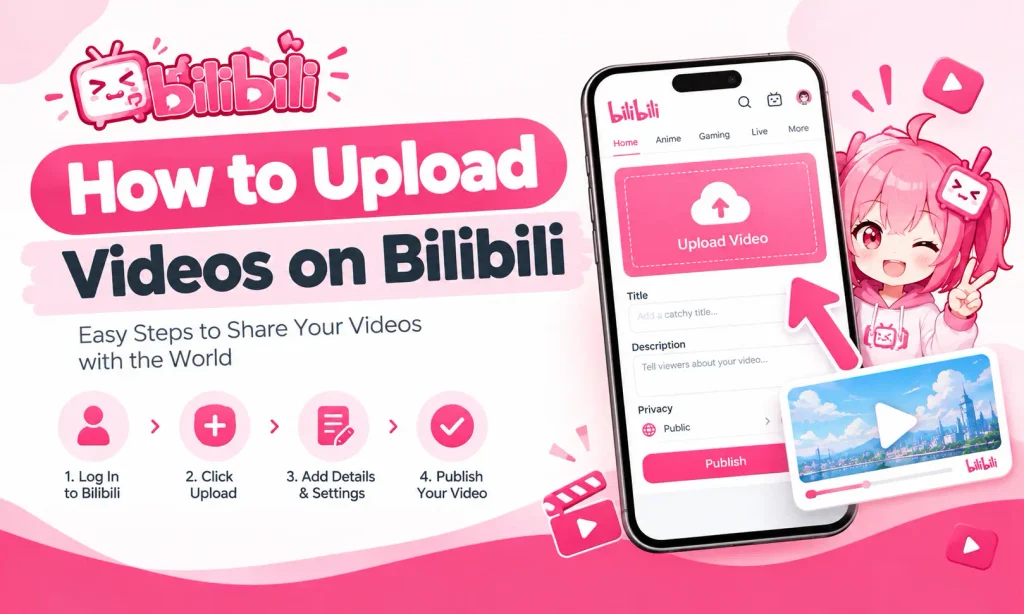
How to Upload a Video on the Bilibili App: Step-by-Step Guide
The mobile app is convenient for creators who record or edit videos on their phones. Follow these steps to publish your content.
Step 1: Open Bilibili and Sign In
Launch the Bilibili app and sign in to your account. Look for the plus (+) icon, creation button, or video upload option. You’ll find the upload button near your profile section.
Step 2: Select Your Video
Tap the plus (+) icon and choose the video upload option. Select the required video from your phone’s gallery and wait for it to load.
Check the preview to make sure you selected the correct file. Allow the app requests permission to access your photos or videos.
Step 3: Edit Your Video and Choose a Thumbnail
You can use basic editing tools, such as trimming or adding music. You can use these options if your video needs minor adjustments.
Next, select a cover image or thumbnail. Choose a clear frame that shows the main subject. If custom cover uploads are available, you can select a prepared image instead.
For example, a photo-editing tutorial should use an image showing the editing result rather than an unrelated picture.
Step 4: Add a Title and Description
Write a title that explains what your video is about. Avoid vague titles such as “My New Video” when you can describe the actual topic.
For example:
Better title: Why Bilibili APK Not Installing
In the description, briefly explain what viewers will learn or see. Add useful context, tools, or related details when relevant.
Use your main topic naturally. Repeating the same keyword several times does not make a title or description more helpful.
Step 5: Add Tags and Select a Category
Choose the category that best matches your video. A gaming tutorial should use a relevant gaming category, while a cooking video belongs in an appropriate food category.
Add a few relevant tags. For a mobile photo-editing tutorial, suitable examples include:
Around three to five relevant tags can be a useful starting point when supported by the interface.
Step 6: Complete Content Declarations
Bilibili will ask you to identify the type or source of your content.
If you see options for original content, reposted content, or AI-generated material, choose the declaration that accurately describes your video. Follow any instructions shown on the upload screen.
Do not label another creator’s work as your own. Editing existing material does not automatically make the entire video original.
Step 7: Check Additional Settings
Also check additional settings related to:
Step 8: Publish Your Video
Check your title, thumbnail, description, category, and tags one last time. Tap Publish button displayed.
After submission, check your content management area for the upload status. A completed upload does not always mean the video is immediately visible because processing or content review may still be required.
How to Upload Videos on Bilibili from a PC
Uploading from a computer is useful when you edit videos using desktop software or need to prepare custom thumbnails.
- Open Bilibili app for PC in your browser and sign in.
- Go to the Creator Center.
- Click Upload Video.
- Select your video file and wait for the upload to finish.
- Enter the title and description, then add a cover image, category, and tags.
- Complete the required content declarations and publishing settings.
- Review your information and submit the video.
- Check your content management area for its current status.
Important Bilibili Video Upload Settings
Understanding the available settings helps you avoid mistakes before publishing.
| Setting | Purpose |
|---|---|
| Title | Explains the video’s main topic |
| Thumbnail | Gives viewers a preview of the content |
| Description | Provides additional information |
| Category | Places the video in a relevant content section |
| Tags | Describe the subject using relevant terms |
| Original or repost | Identifies the content’s source |
| AI declaration | Identifies applicable AI-generated material |
| Danmaku | Controls scrolling comments when supported |
| Visibility | Determines the video’s available audience |
| Scheduled posting | Sets a future publishing time if available |
Tips for Getting More Views on Bilibili
Uploading a video is only the first step. Good presentation and relevant content can help viewers discover and understand your work.
Write descriptive titles. Put the main subject near the beginning and explain what viewers can expect.
Use a clear thumbnail. Choose a relevant image with a visible subject. Avoid tiny text and crowded designs.
Add useful tags. Select terms that accurately describe your video instead of adding unrelated popular keywords.
Include subtitles when helpful. Subtitles can make tutorials easier to follow. Review automatically generated subtitles for mistakes before publishing.
Publish consistently. Choose a realistic schedule and focus on creating useful videos rather than uploading content simply to increase quantity.
Review your results. Use available performance information to understand which topics attract viewers and improve future videos.
Why Is My Bilibili Video Not Uploading?
If your video fails to upload or does not appear, check the following common problems.
| Problem | Possible solution |
|---|---|
| Upload stuck | Check your internet connection and wait briefly |
| Upload failed | Confirm the file format and displayed size limits |
| Video under review | Check the status again later |
| Video not visible | Confirm that processing is complete and visibility settings are correct |
| Upload button missing | Check the creation section or Creator Center |
| Video has no sound | Play the original file and check its audio |
| App not responding | Restart the app and check for an available update |
How Long Does Bilibili Take to Review a Video?
Review time always depend on the content, account, & region. According to recent creators discussions, it usually take 5 minutes to 24 hours to completely review a full lengthy video.
Bilibili International App vs Chinese App
Bilibili’s international app and mainland China service have different app experiences. Their interfaces, account requirements, categories, and creator tools are not identical.
| Feature | International app | Chinese app |
|---|---|---|
| Interface | Designed for the international service | Designed for the mainland China service |
| Upload controls | Depend on the app version and account | Depend on the app version and account |
| Categories and tags | Follow the available options | May offer different options |
| Creator features | Availability can vary | Availability can vary |
Can You Earn Money by Uploading Videos on Bilibili?
Bilibili offers creator monetization opportunities for eligible accounts, but uploading a video does not guarantee earnings.
Creators, often called UP主 (content uploaders) have access to monetization programs, paid content, or other earning opportunities according to their region.
There is an approximately earning figure of $0.70 per 1,000 views.
Start by creating useful content, building an audience, and checking which monetization options are available to your account.
Conclusion
Uploading videos on Bilibili involves signing in, selecting a video, adding a title and thumbnail, choosing relevant tags, and submitting the content for review. The same basic process applies to mobile and desktop uploads, although the available settings may differ.
Prepare your video carefully, check its status after submission, and use viewer feedback to improve your next upload.